Introduction
Notes can be added or modified within a reservation. This allows the hotel to be aware of any special requests or unique circumstances.
-
-
Fosse is based on MS-DOS and is navigated by using your keyboard. Mouse clicks do not function in Fosse.
-
While viewing a reservation:
-
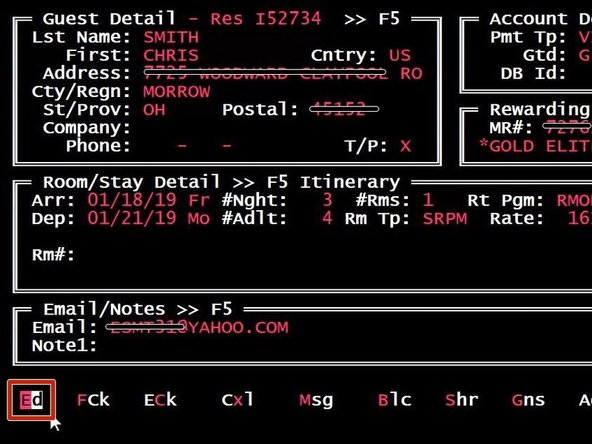
Press E for Edit on your keyboard
-
-
-
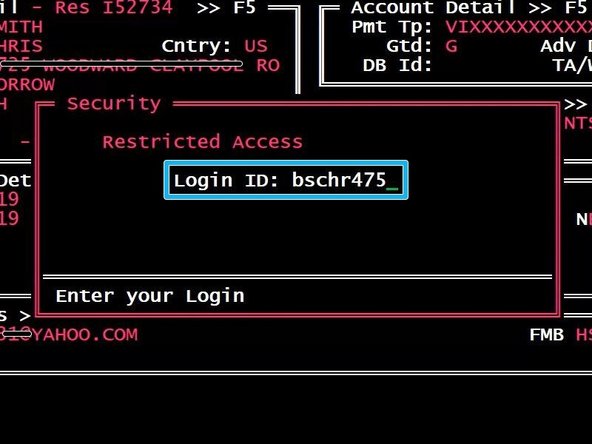
To verify your account has permission to make edits:
-
Type your Login ID
-
Press Enter on your keyboard
-
-
-
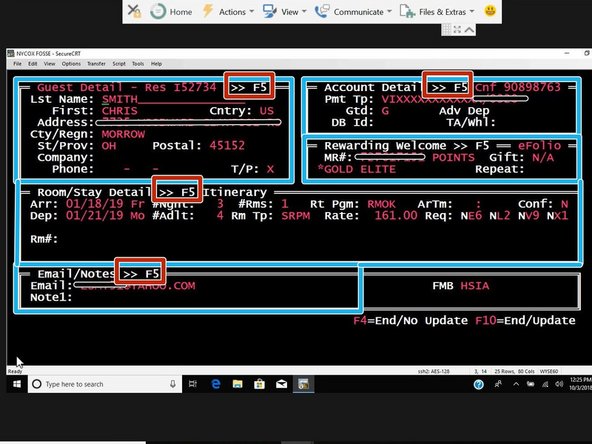
Pressing ENTER on your keyboard will move the cursor to the next field.
-
Pressing TAB will move the cursor to the next section.
-
When the cursor is in the desired section:
-
Press F5 for a detailed view
-
You computer may have a secondary function for the F5 key. If your keyboard has a "Fn" key, hold "Fn" and then press F5.
-
-
-
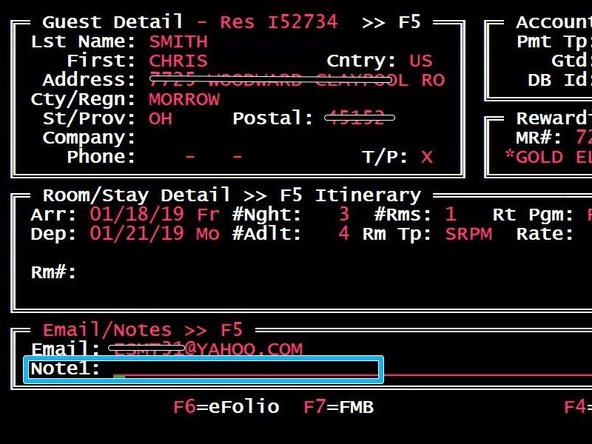
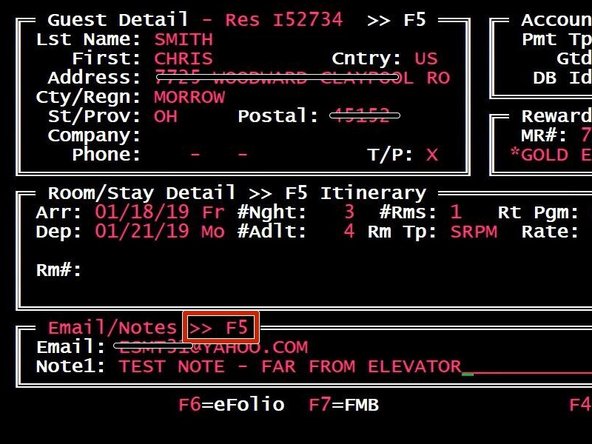
While in the Email/Notes section:
-
Type the Notes
-
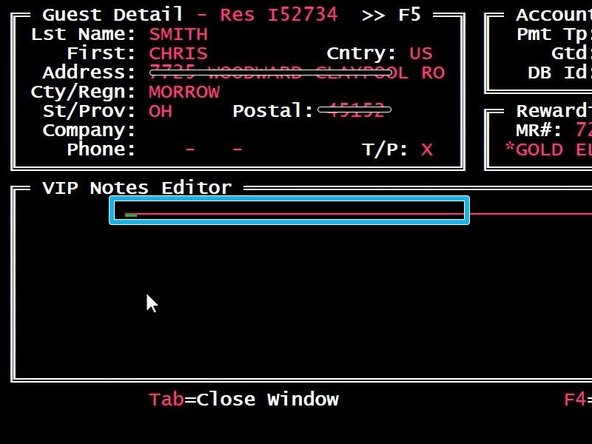
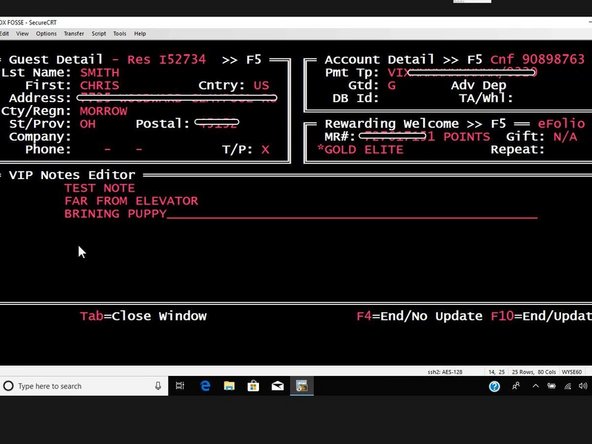
If you need to add more than one line of notes:
-
Press F5
-
You computer may have a secondary function for the F5 key. If your keyboard has a "Fn" key, hold "Fn" and then press F5.
-
-
-
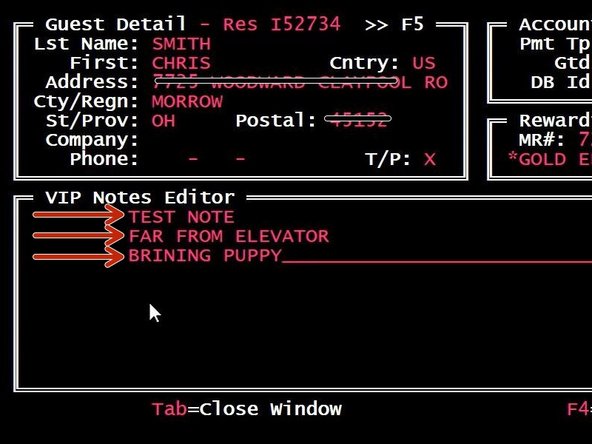
Type your notes
-
To add another line:
-
Press Enter on your keyboard
-
-
-
The cursor can be moved by using the arrow keys on your keyboard.
-
To remove notes:
-
Press Delete or Backspace on your keyboard
-
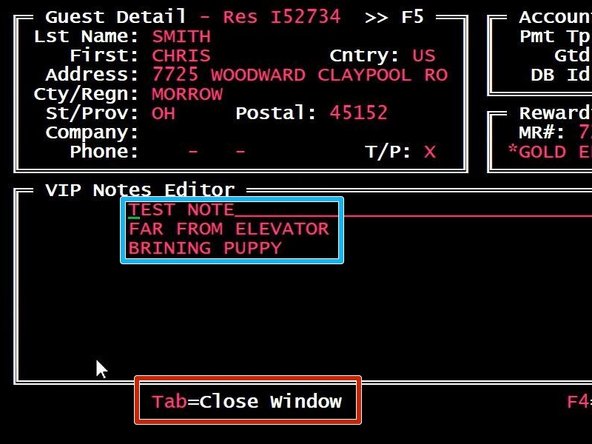
To close the notes editor:
-
Press Tab on your keyboard
-
-
-
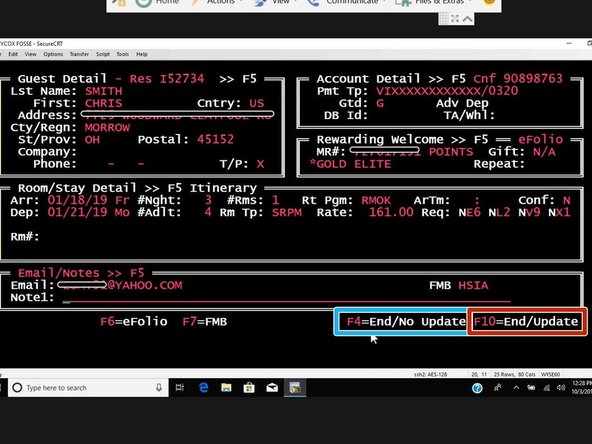
To close the reservation and NOT save changes:
-
Press F4
-
You computer may have a secondary function for the F4 key. If your keyboard has a "Fn" key, hold "Fn" and then press F4.
-
To close the reservation and save changes:
-
Press F10
-
You computer may have a secondary function for the F10 key. If your keyboard has a "Fn" key, hold "Fn" and then press F10.
-
-
-
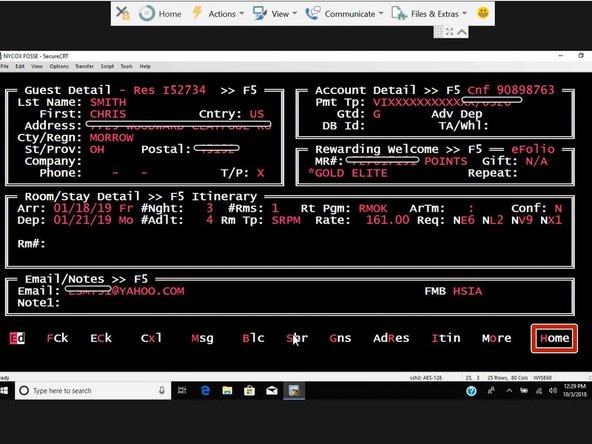
To return the main search screen:
-
Press H for Home on your keyboard
-