-
-
Select the Appt Desk tab
-
Click Book It
-
Make a note of the PCP (Primary Care Provider).
-
-
-
In most cases, you should be only making appointments for the PCP (Primary Care Provider). PBX does not crossbook.
-
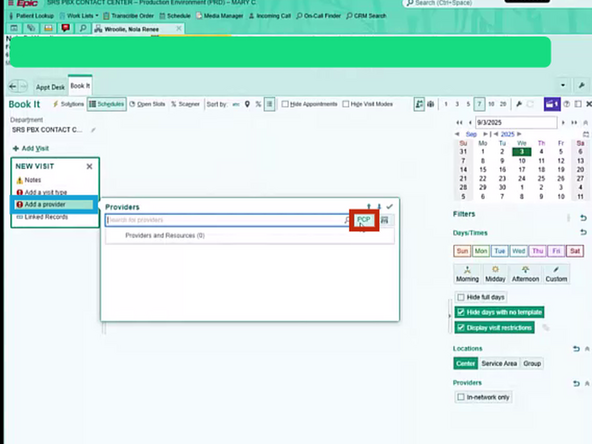
Click Add a provider
-
Click PCP
-
-
-
Select the Department
-
Click Accept
-
-
-
Select the PCP
-
Click the ✓
-
-
-
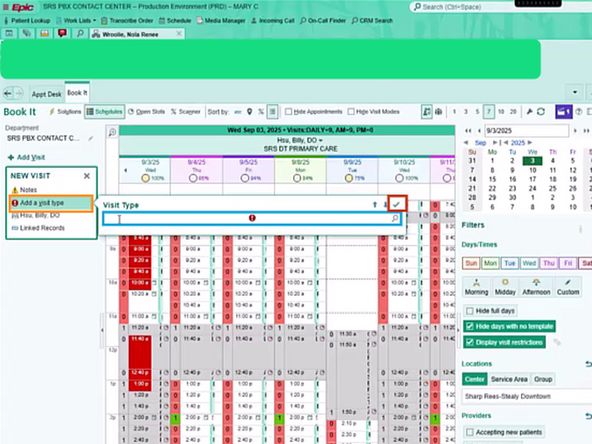
Click Add a visit type
-
Add the Visit Type
-
Click the ✓
-
-
-
Click Solutions
-
-
-
Book It will automatically show only the closest available appointment for the PCP.
-
If the patient wishes for a different appointment then what is available, they will need to call back during business hours.
-
Select the desired Appointment Time
-
-
-
Read back the appointment details to the patient.
-
The Appointment Date, Time, Duration
-
The Doctor who the appointment is with
-
The Location of the appointment
-
Include any Early Arrival Reasons, Department Address, Patient Instructions
-
Once the Appointment is confirmed:
-
Click Schedule
-