-
-
It can take a minute or two for Genesys to launch the first time.
-
A Genesys Cloud Shortcut will be on your Desktop.
-
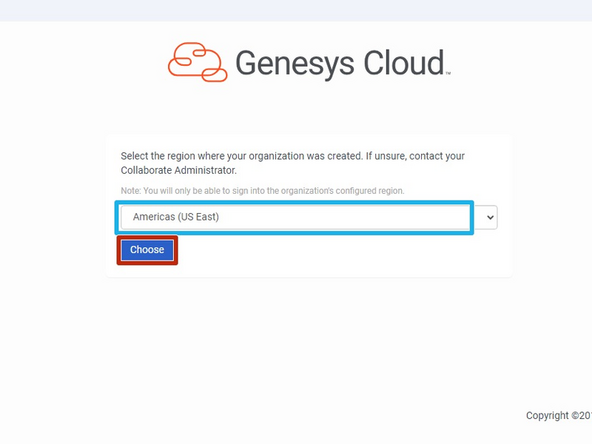
Select Americas (US East)
-
Click Choose
-
-
-
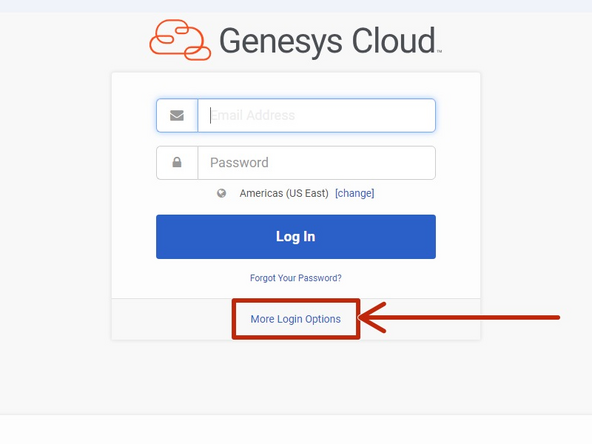
Click More Login Options
-
-
-
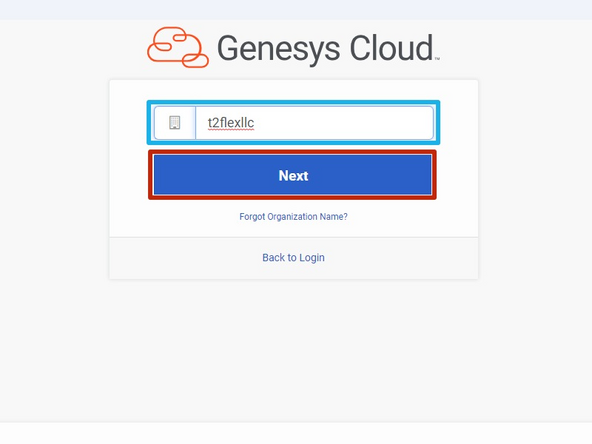
Enter the organization as t2flexllc
-
Click Next
-
-
-
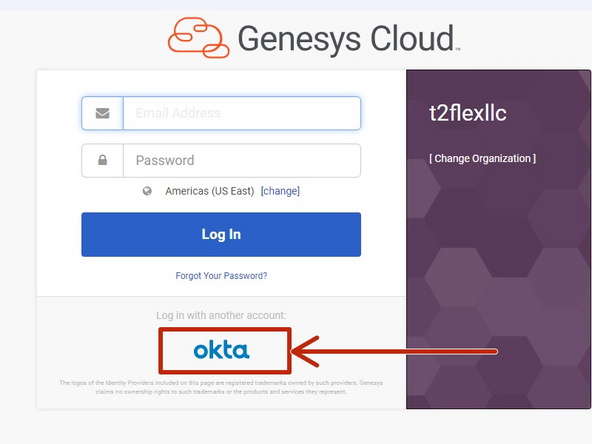
Click okta
-
-
-
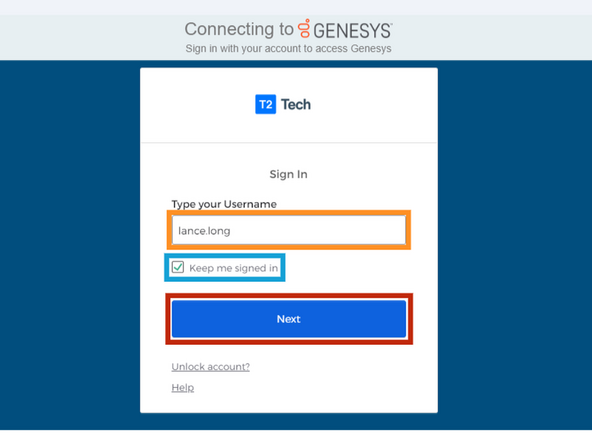
You must sign into your T2 Flex okta account.
-
Enter your Username
-
Select Keep me signed in
-
Click Next
-
Proceed with the okta login process.
-
-
-
It can take a minute or two for Genesys to launch the first time.
-
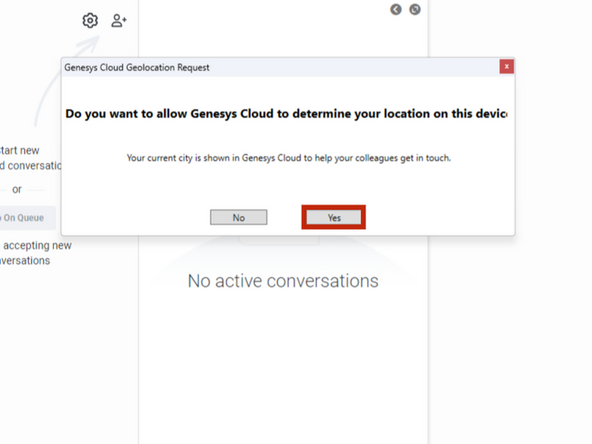
Genesys Cloud will ask for permission to determine your location:
-
Click Yes
-
-
-
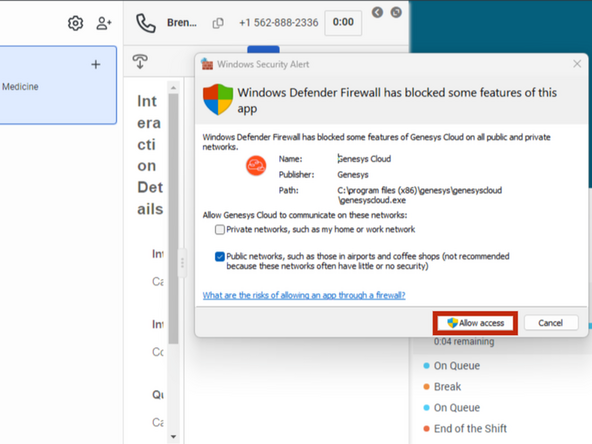
The first time you make a phone call, you may encounter a Windows Security Alert
-
Click Allow access
-
Almost done!
Finish Line
