Introduction
This guide will outline how to document interactions via Teams and SRS email.
-
-
Use a template to expedite note taking.
-
Select a Template
-
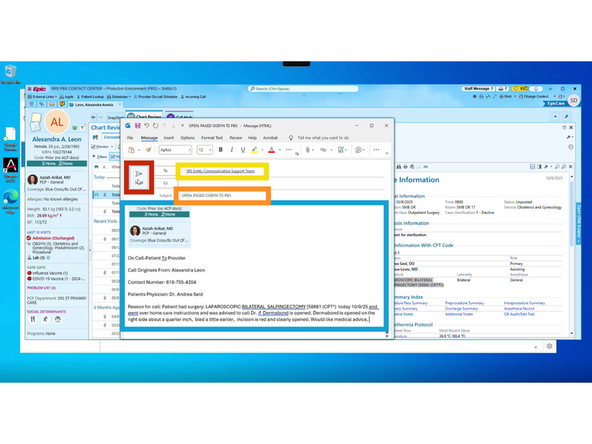
Collect the Call Details
-
-
-
Once you have added your notes:
-
Verify the On Call
-
This example uses the Daily Schedule to confirm the On Call.
-
-
-
Go to the Active Providers tab
-
Search by the last name only. Adding a first name will result in a failed search.
-
Press Ctrl + F on your Keyboard
-
Enter the providers last name
-
Click Find Next until you find the desired provider
-
-
-
Return to the patient's chart in Epic.
-
Press the Windows key + Shift + S on your keyboard
-
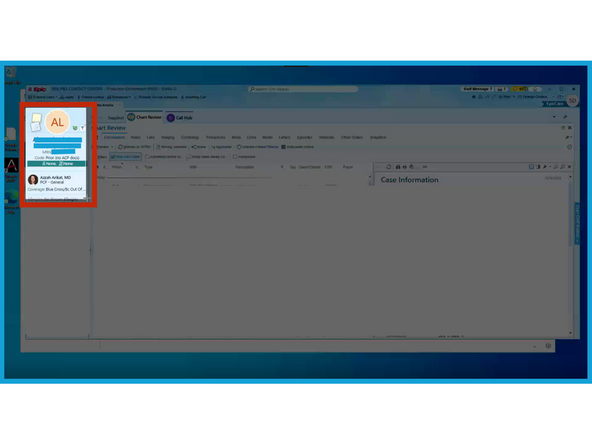
Click and drag the Patient Summary
-
-
-
Go back to your Outlook email.
-
Click Above your notes
-
To paste the snip of the patient information:
-
Press Ctrl + V on your keyboard
-
-
-
To: SRS Entity Communication Support Team
-
Enter a Subject
-
Indicate if the call is still Open or Done. Example: Done: Paged Dr. Raed Manadrah to PA Anna McKinley at ST UC 619-568-8028
-
Select all of your email
-
Click Send
-
-
-
Open Microsoft Teams.
-
Select Chats
-
Select T2 Remote Agents
-
Click the message field and Press Ctrl + V on your keyboard then Enter
-