-
-
Click the Windows Start icon
-
Type Windows App in the search field
-
Click Windows App
-
-
-
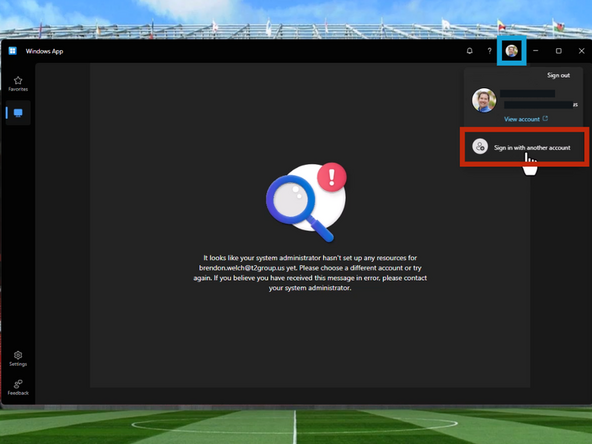
Your T2 email is used by default in the Windows App. You must sign in with your Geisinger credentials.
-
Click on your Profile Image
-
Click Sign in with another account
-
-
-
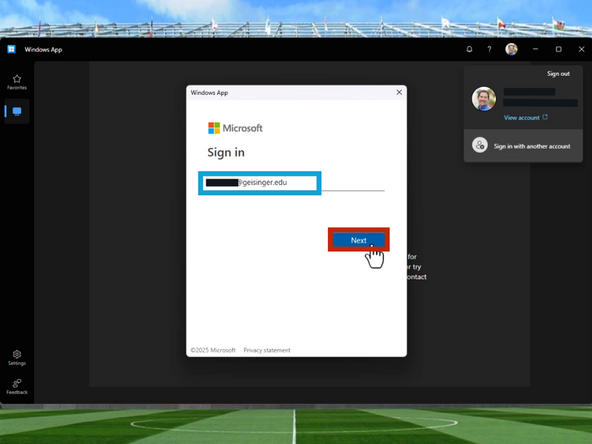
Enter your Geisinger Email
-
Click Next
-
-
-
Enter your Geisinger Password
-
Click Sign In
-
-
-
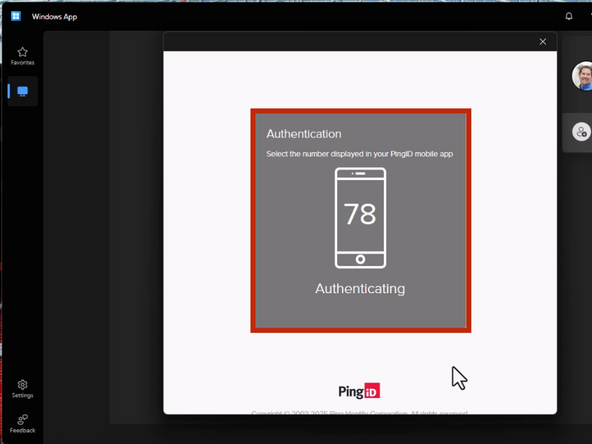
Your mobile phone will receive a PingID notification.
-
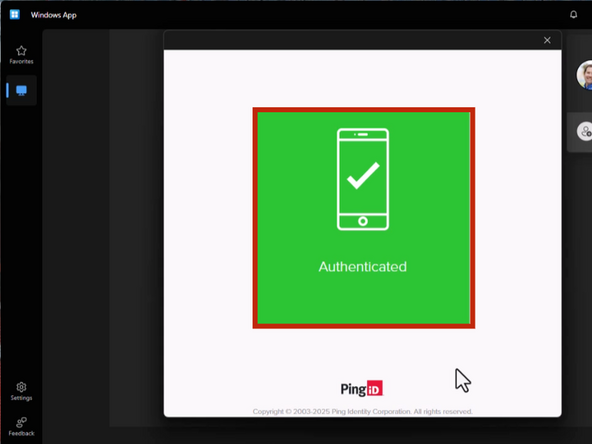
Authenticate your Login using PingID
-
-
-
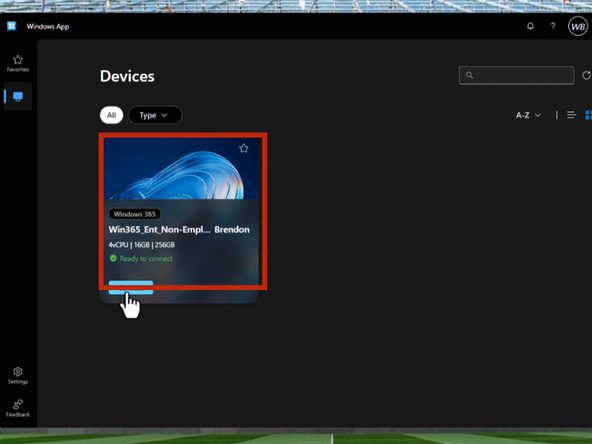
Your Geisinger Virtual Machine will appear in your Devices
-
To connect your Virtual Machine:
-
Click on your Desktop
-
-
-
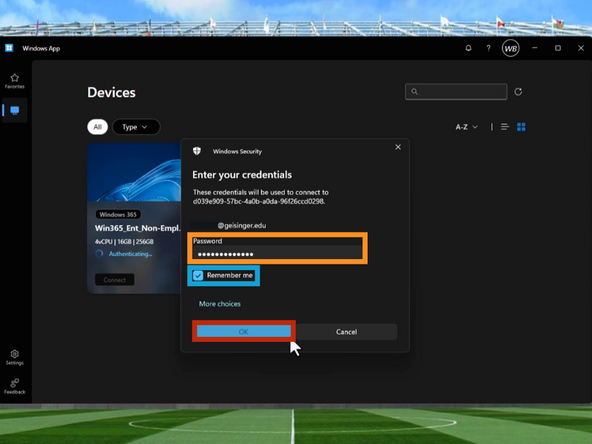
Enter your Geisinger Password
-
Check Remember me
-
Click OK
-
-
-
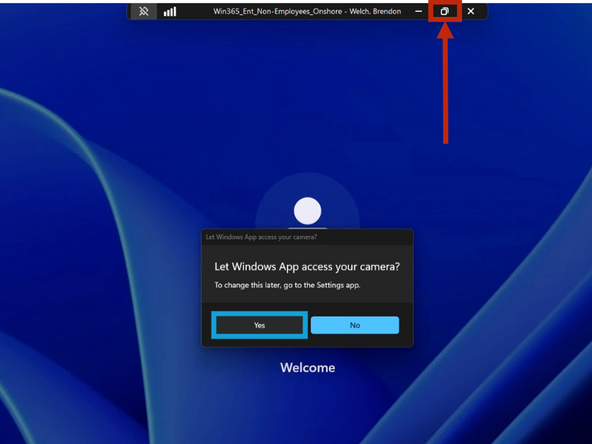
Windows App will ask for access to your camera.
-
Click Yes
-
Windows App will open Full Screen on your monitor.
-
Click the Restore Down button
-
You can move and resize the Windows App by clicking and dragging the sides and corners of the window.
-