-
-
Click the Windows Start icon
-
Type Windows App in the search field
-
Click Windows App
-
-
-
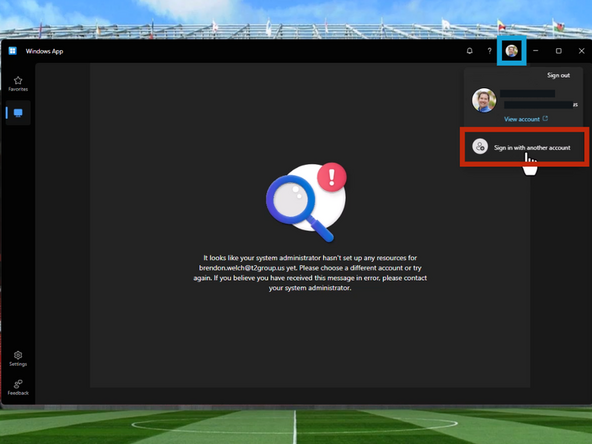
Your T2 email is used by default in the Windows App. You must sign in with your Sharp credentials.
-
Click on your Profile Image
-
Click Sign in with another account
-
-
-
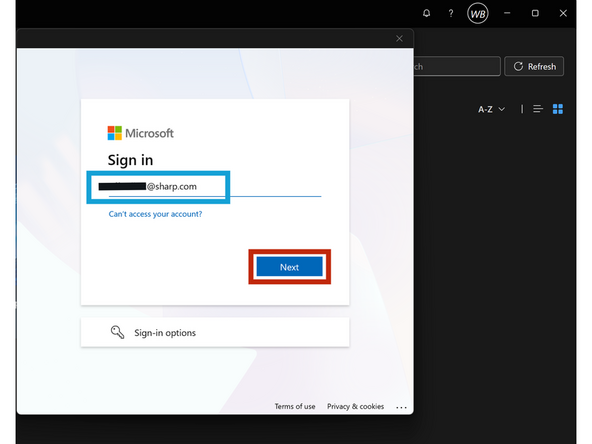
Enter your Sharp Email
-
Click Next
-
-
-
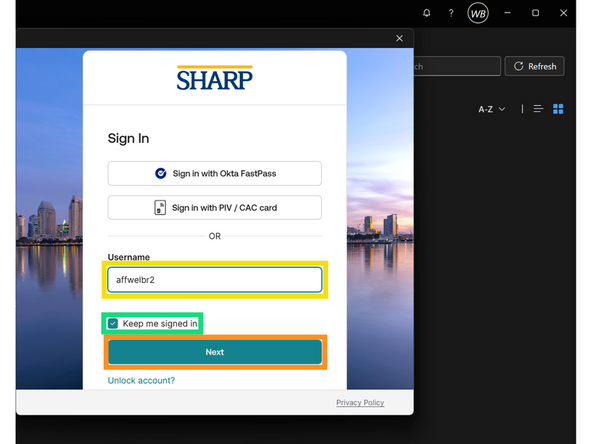
Enter your Sharp Username
-
Check Keep me signed in
-
Click Next
-
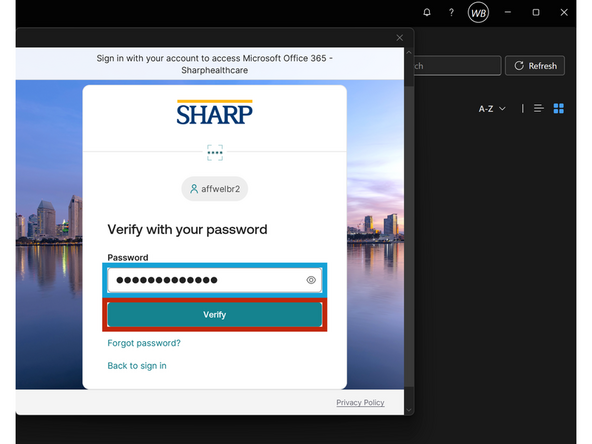
Enter your Sharp Password
-
Click Verify
-
-
-
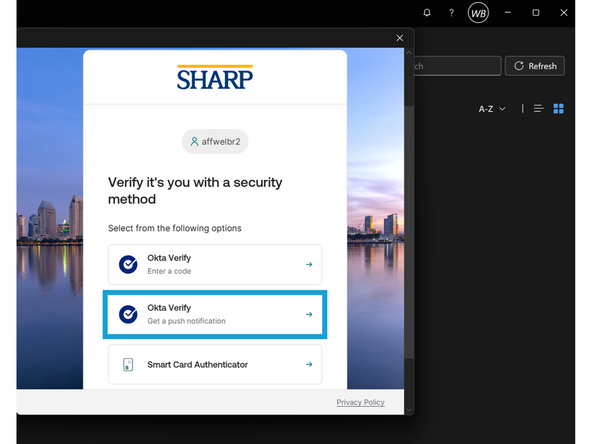
Select Okta Verify
-
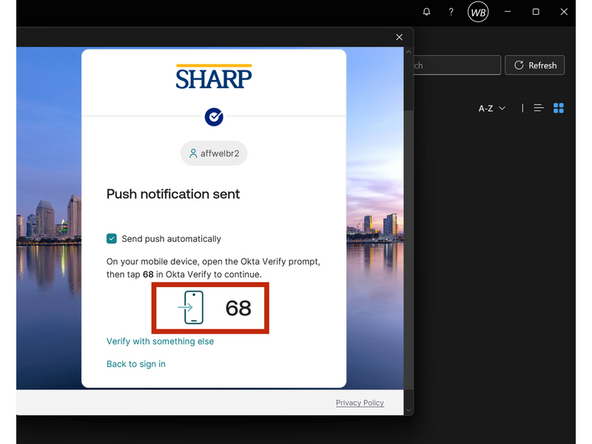
Your mobile phone will receive an Okta Verify notification.
-
Authenticate your Login using Okta
-
-
-
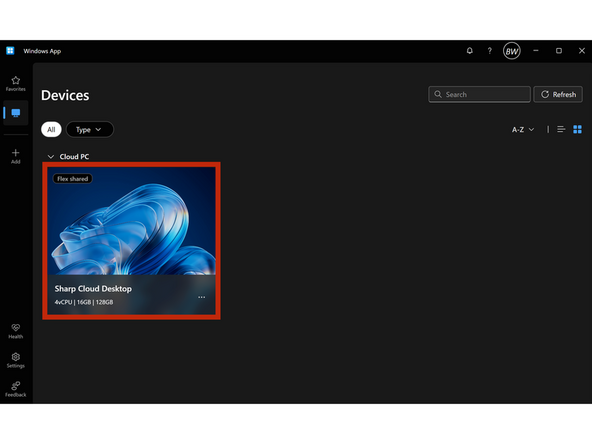
Your Sharp Virtual Machine will appear in your Devices
-
To connect your Virtual Machine:
-
Click Sharp Cloud Desktop
-
-
-
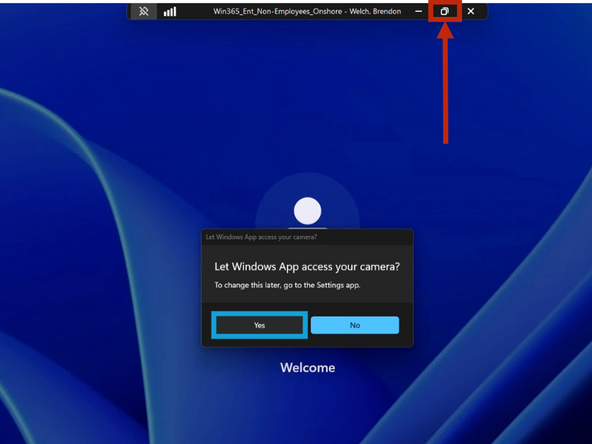
Windows App may ask for access to your camera.
-
Click Yes
-
Windows App will open Full Screen on your monitor.
-
Click the Restore Down button
-
You can move and resize the Windows App by clicking and dragging the sides and corners of the window.
-