-
-
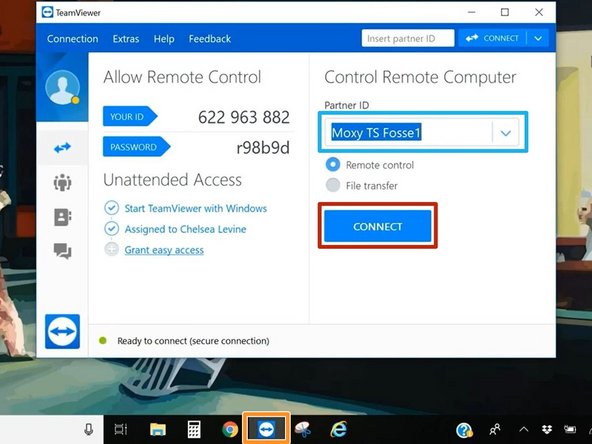
Team Viewer is the remote desktop software used to log in to Fosse.
-
Launch Team Viewer
-
Enter the Partner ID for your Fosse environment
-
The Partner ID will vary depending on the hotel you are serving.
-
Click Connect
-
-
-
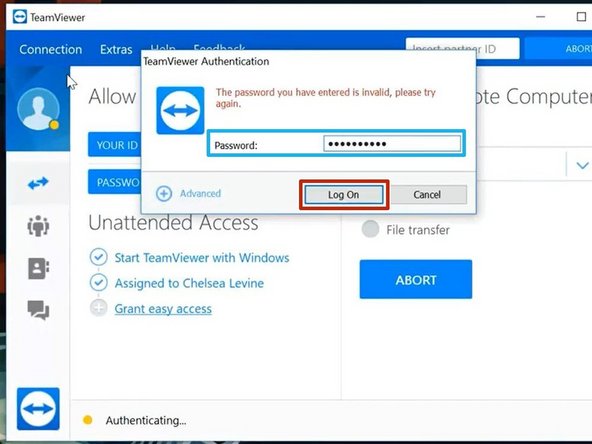
Enter the Password
-
The password to each hotel's Fosse environment will vary, and will be provided to you by your training manager.
-
Click Log On
-
-
-
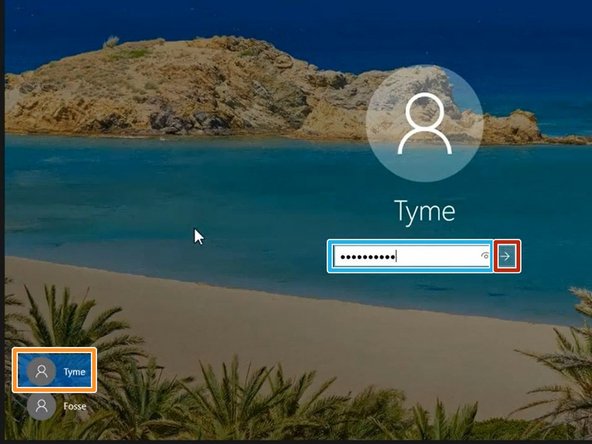
Team Viewer logs you into a PC shared by other people. If another user is logged in, you will need to wait until they are done.
-
Select the Tyme account
-
Enter the Password
-
The password to each hotel's Fosse environment will vary, and will be provided to you by your training manager.
-
Click Login
-
-
-
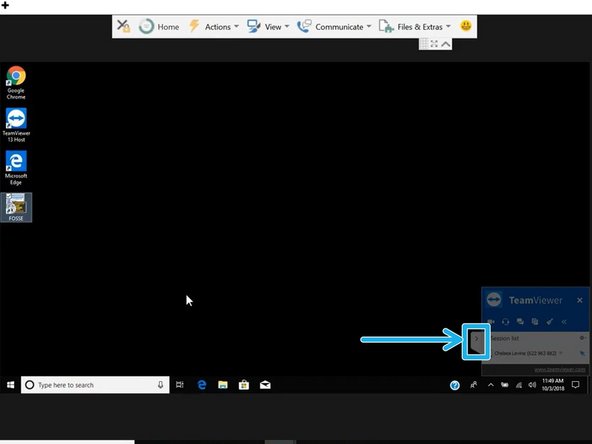
Minimize the Team Viewer notification window
-
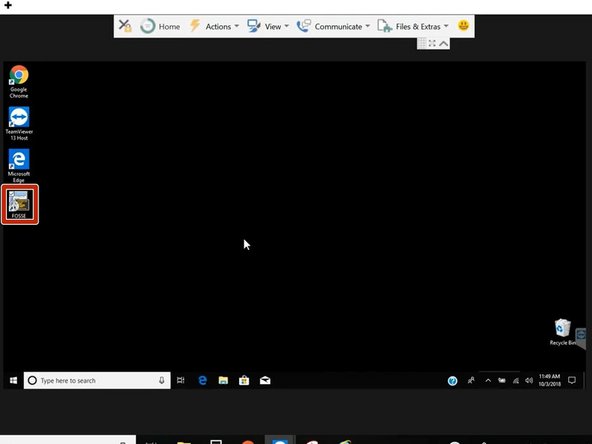
Double-click Fosse
-
-
-
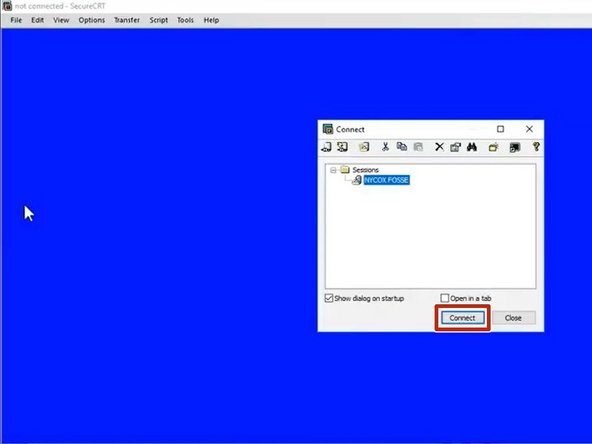
SecureCRT will appear. Do not click any additional options.
-
Click Connect
-
-
-
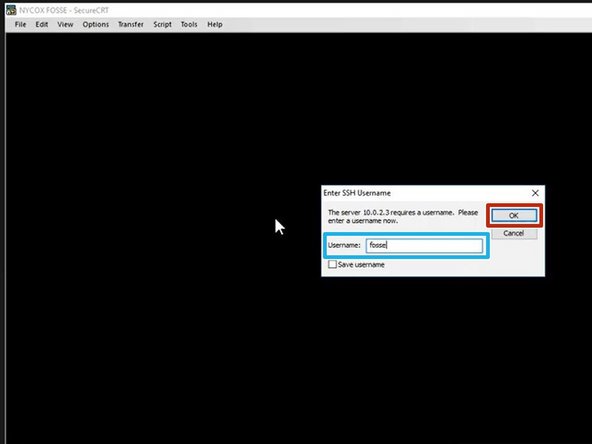
Enter the Username
-
The Username will be provided to you by your training manager.
-
Click OK
-
-
-
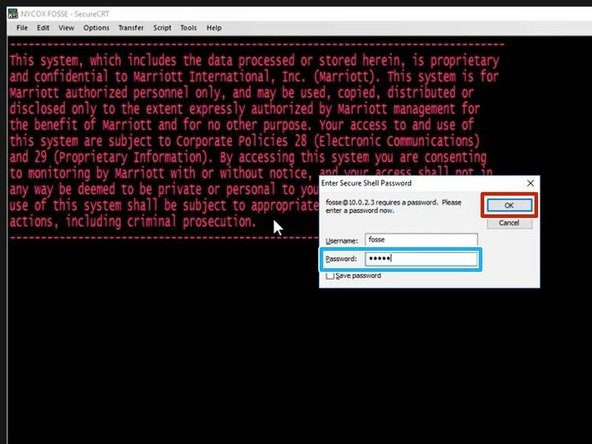
Enter the Password
-
The Password will be provided to you by your training manager.
-
Click OK
-
-
-
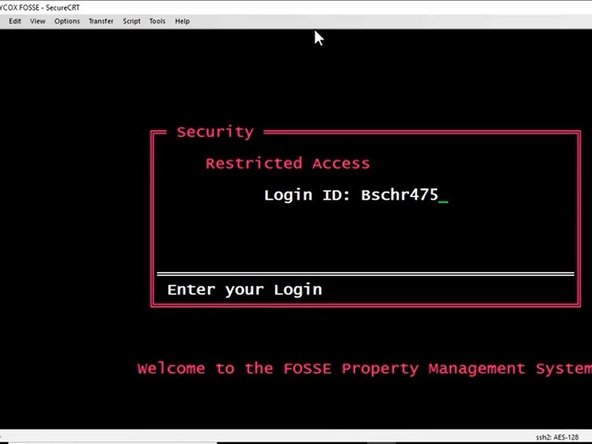
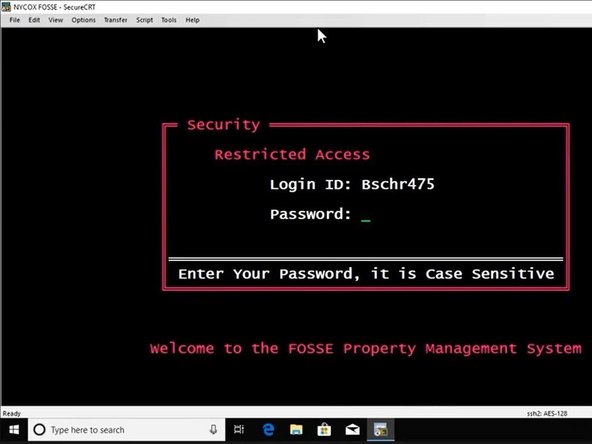
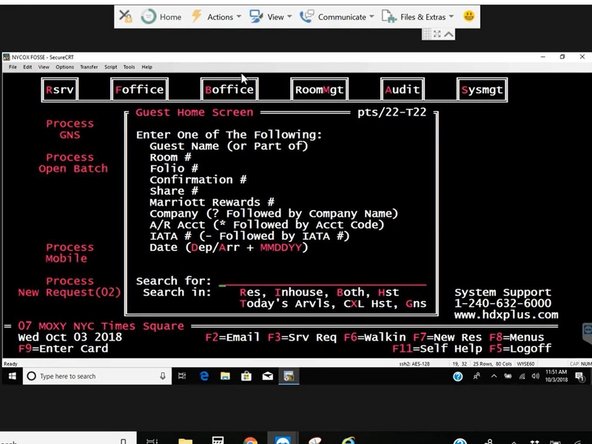
Fosse is based on MS-DOS and is navigated by using your keyboard. Mouse clicks do not function in Fosse.
-
Type the Login ID
-
The Login ID will be provided to you by your training manager.
-
Press Enter on your keyboard
-
-
-
Password will appear and the cursor will be blinking.
-
Type the Password
-
The password will be provided to you by your training manager.
-
The characters typed will not appear, they will stay hidden. Be sure to enter the password correctly.
-
Press Enter on your keyboard
-
-
-
To Log Out:
-
Press F5 on your keyboard
-
You computer may have a secondary function for the F5 key. If your keyboard has a "Fn" key, hold "Fn" and then press F5.
-
-
-