Introduction
Reservations can be looked up using the customer’s name or confirmation number.
-
-
Fosse is based on MS-DOS and is navigated by using your keyboard. Mouse clicks do not function in Fosse.
-
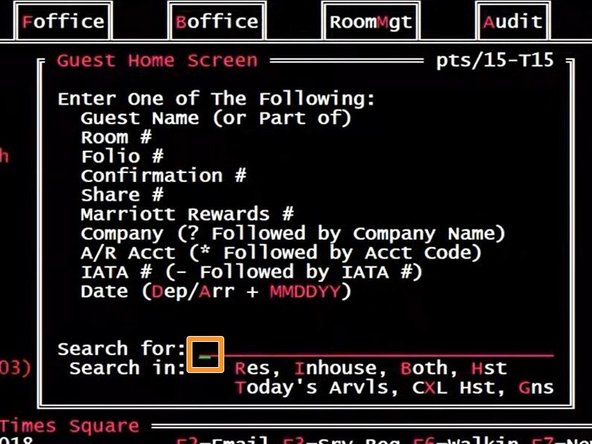
The Blinking Green Cursor will indicate which field is active
-
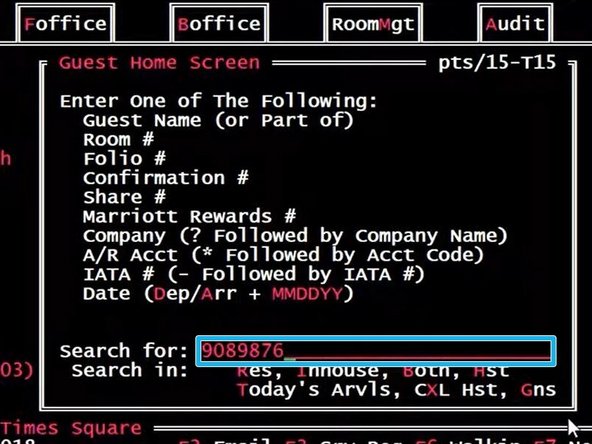
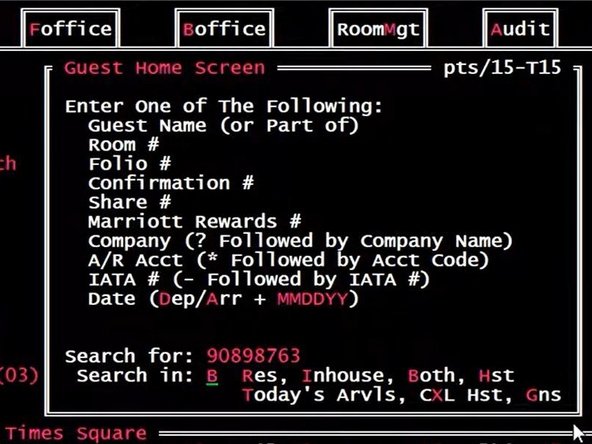
Type the Confirmation Number of the reservation you are researching
-
Press Enter on your keyboard
-
-
-
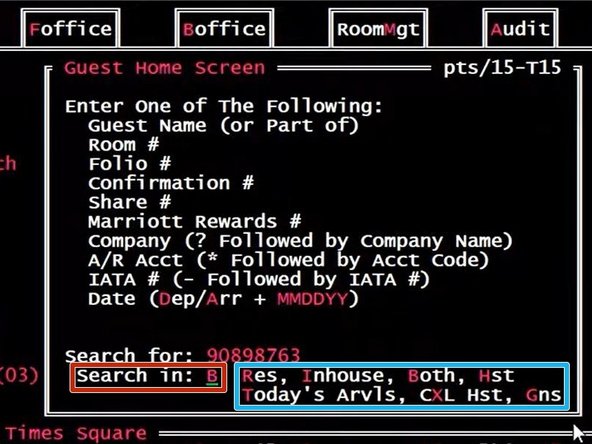
Determine the Search Criteria
-
Res= Reservations
-
Inhouse= Already checked in
-
Both= Reservations and Already checked in
-
Hst= History
-
Today's Arvls= Reservations arriving today
-
CXL Hst= Cancellation history
-
Search in B
-
-
-
You must confirm the caller's First and Last Name, Last 4 Digits of the Method of Payment, and Check - Out Date.
-
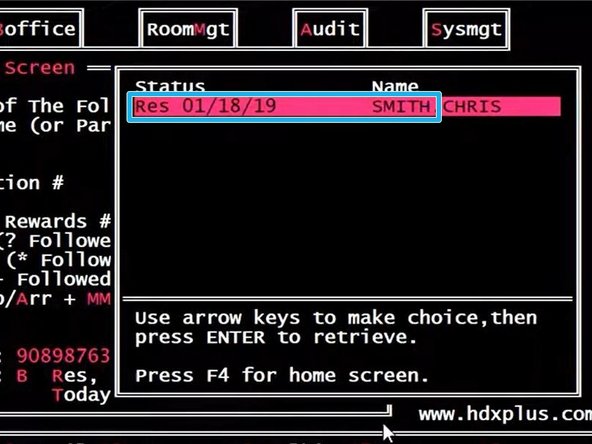
Using the Up ↑ and Down ↓ arrow keys on your keyboard:
-
Select the desired Reservation
-
Press Enter on your keyboard
-
-
-
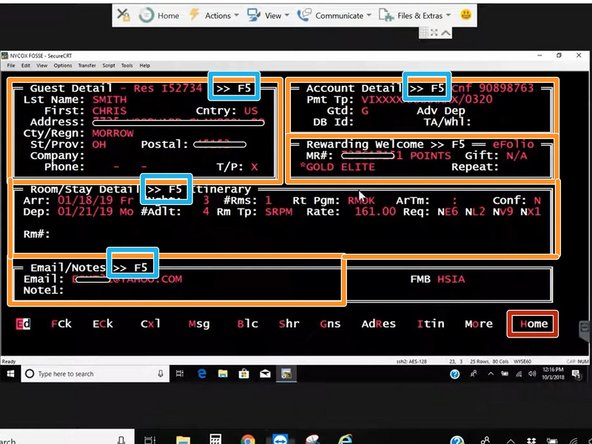
Pressing ENTER on your keyboard will move the cursor to the next field.
-
Pressing TAB will move the cursor to the next section.
-
When the cursor is in the desired section:
-
Press F5 for a detailed view
-
-
You computer may have a secondary function for the F5 key. If your keyboard has a "Fn" key, hold "Fn" and then press F5.
-
To return the main search screen:
-
Press H for Home on your keyboard
-