-
-
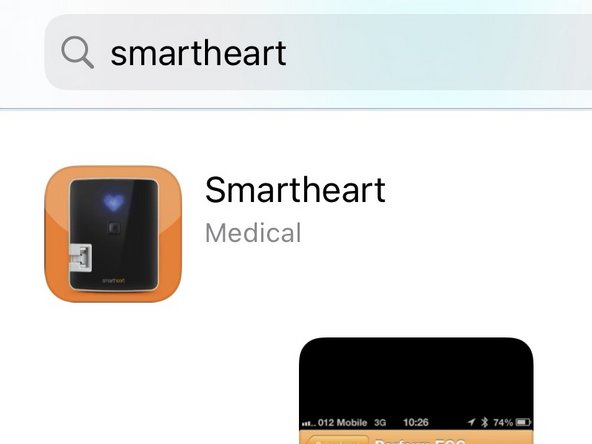
Open the App Store on your iOS device
-
-
-
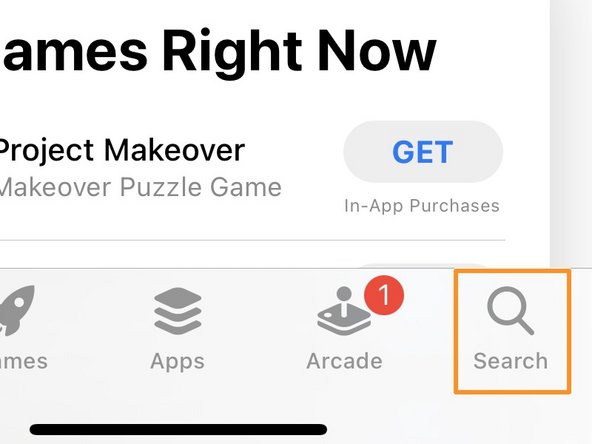
Tap Search
-
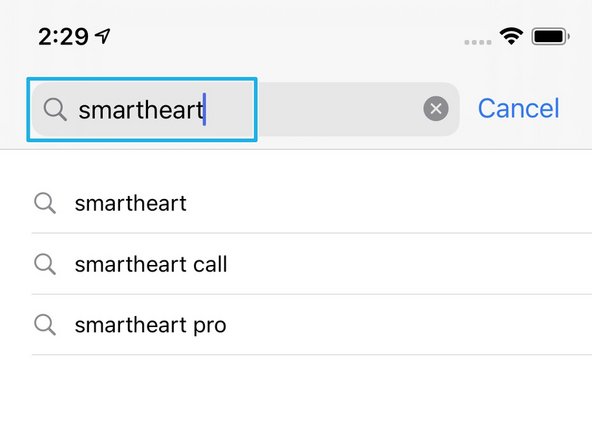
Search for SmartHeart®
-
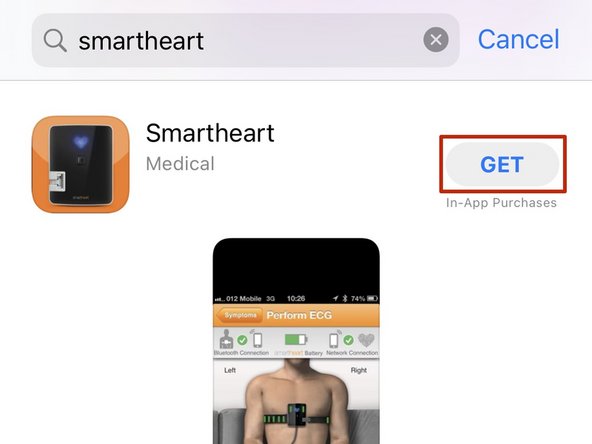
Select Get
-
SmartHeart®Call should not be used by patients based in the United States.
-
-
-
Once SmartHeart® is installed:
-
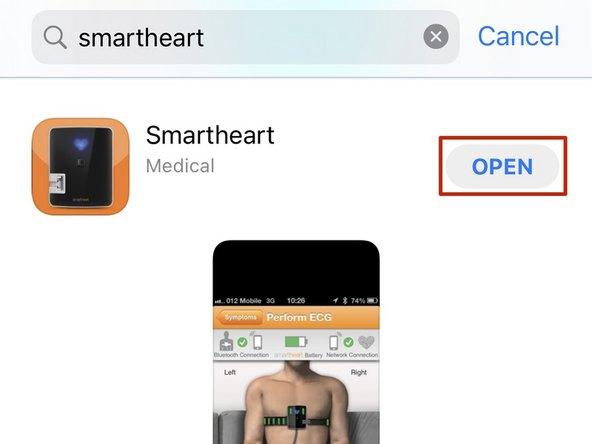
Select Open
-
-
-
The SmartHeart® application requires permission to access certain features of your iOS device. The first time the SmartHeart® app opens, you will be prompted to allow access to the required features.
-
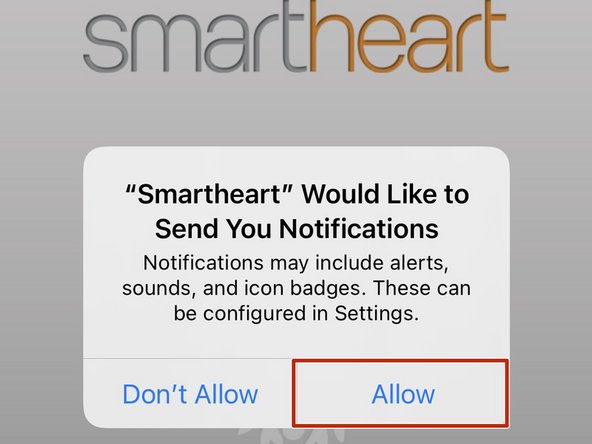
Allow permission to send you notifications:
-
Select Allow
-
-
-
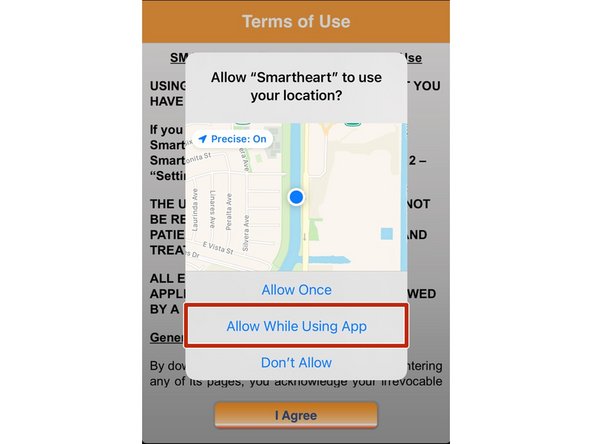
Allow permission to your location:
-
Select Allow While Using App
-
-
-
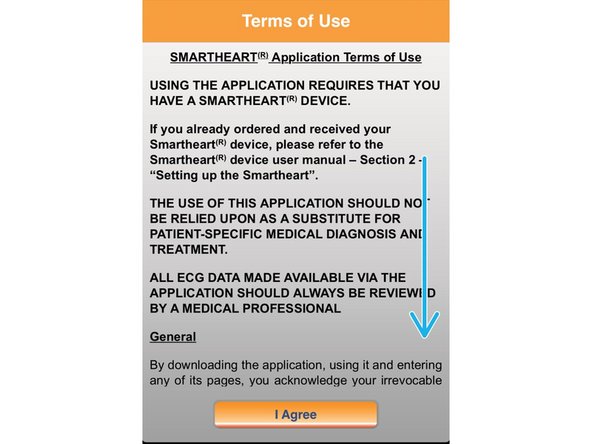
Review the Terms of Use:
-
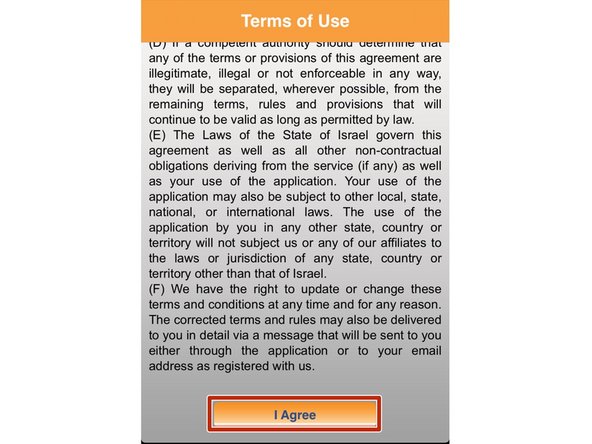
Scroll Down to the end of the Terms of Use
-
Select Agree
-
-
-
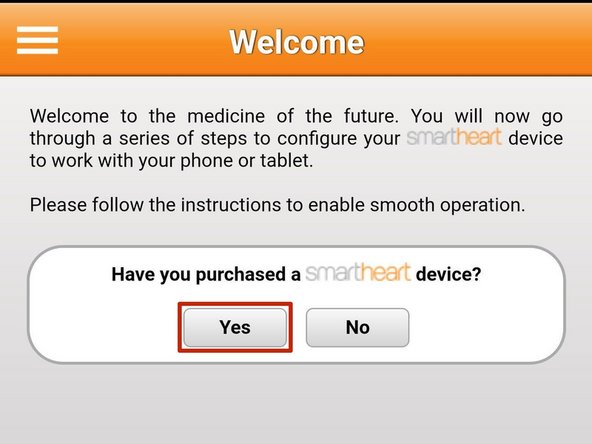
Select Yes
-
-
-
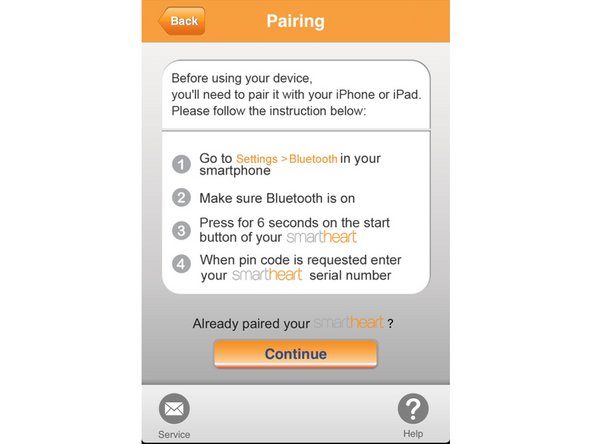
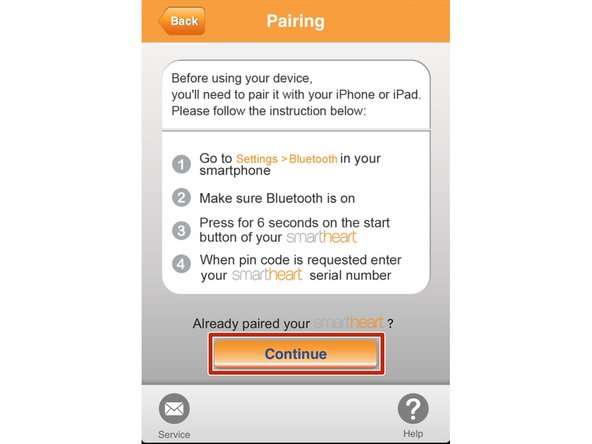
The SmartHeart™ iOS App cannot control your device’s Bluetooth connection. You must pair manually from your iPhone/iPad’s settings.
-
While your SmartHeart® is off:
-
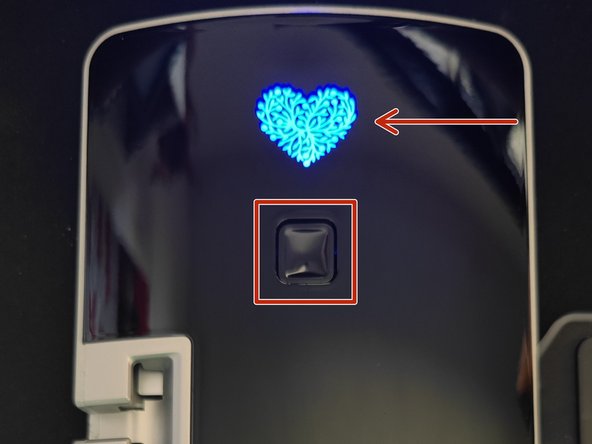
Press and hold the ON/OFF button at least 6 seconds or until the heart is blinking
-
-
-
Return to the Home screen on your iOS device.
-
Select Settings
-
-
-
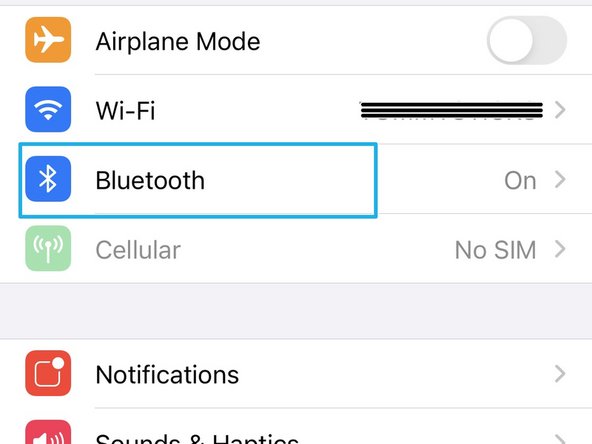
Select Bluetooth
-
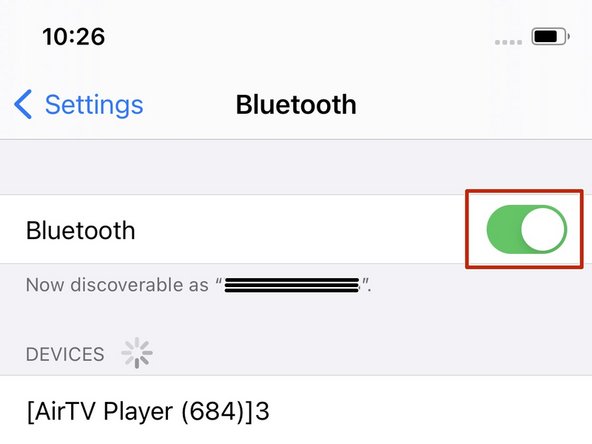
Enable Bluetooth
-
-
-
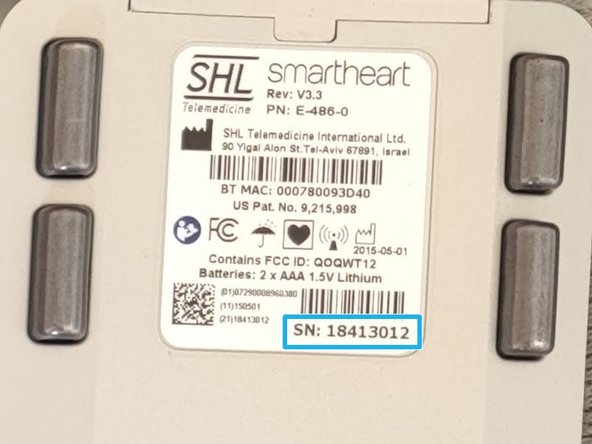
The Serial Number of your Smart Heart® is also the Bluetooth Pin. The Serial Number is located on the back of your SmartHeart®, on the label, below the UPC code.
-
After approximately 60 seconds, your iOS device will detect SmartHeart®.
-
Once you are prompted to enter the pin:
-
Enter the Serial Number as the pin
-
Select Pair
-
-
-
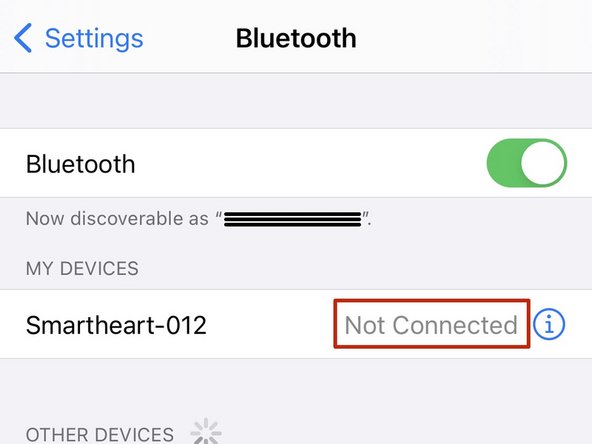
If SmartHeart® appears Not Connected:
-
Tap Not Connected to refresh the connection
-
Return to the SmartHeart® app.
-
-
-
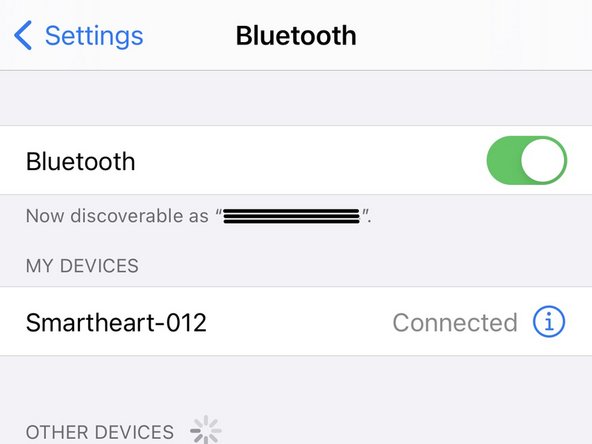
Once your iOS device is paired with the SmartHeart®:
-
Select Continue
-
-
-
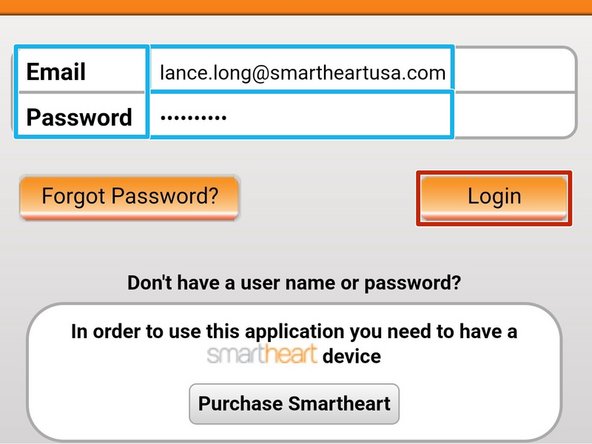
Enter the Email address and Password to your SmartHeart® account
-
Select Login
-
-
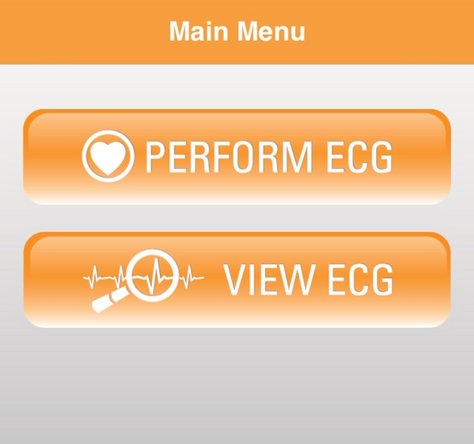
Once you have logged in, you will only need to log back in if you want to view ECGs.
-