-
-
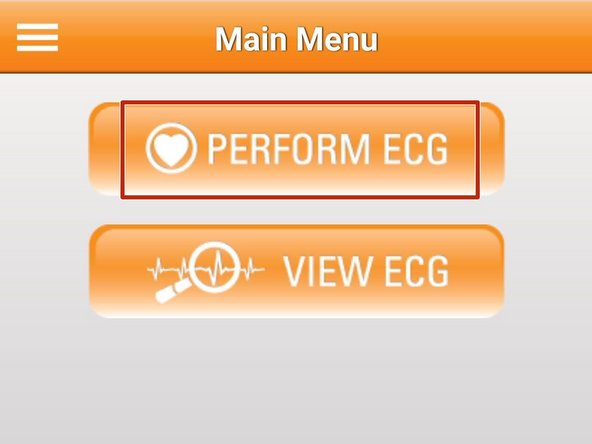
Select Perform ECG
-
The first time you use SmartHeart® you will need to set up a profile.
-
Once a Profile is added, it will be saved to your Profiles list and can be used for subsequent ECGs.
-
-
-
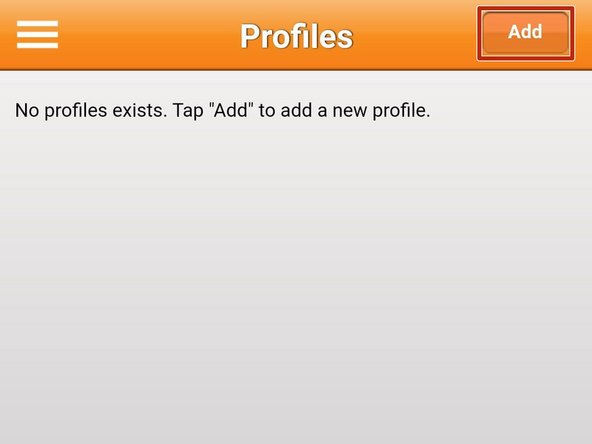
To add a new profile:
-
Select Add
-
If a profile already exists, select from the profile list.
-
-
-
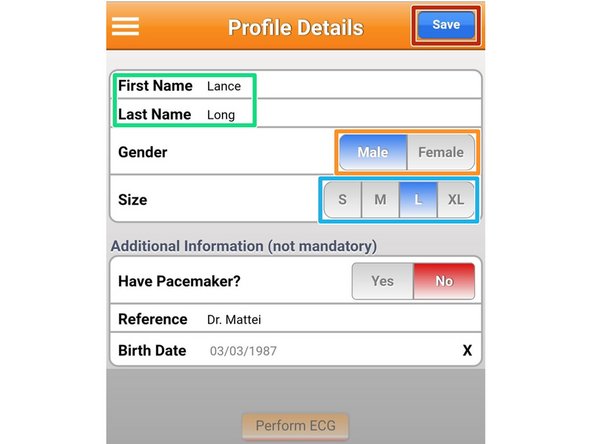
Enter your First and Last Name
-
Select your Gender
-
Select your Size
-
-
-
You can provide details in the Additional Information fields, but it is not required.
-
Select Save
-
-
-
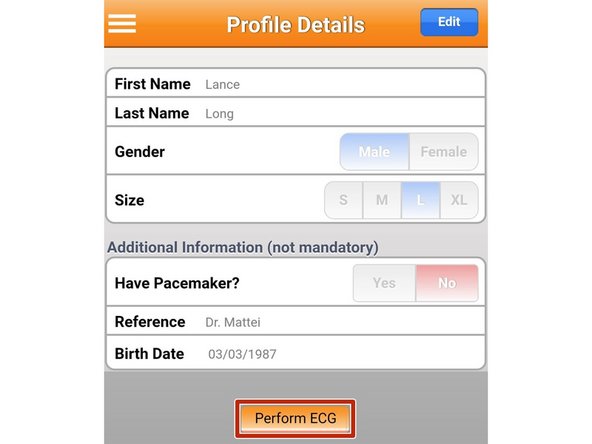
Once you have saved your profile, an ECG can be performed.
-
Select Perform ECG
-
-
-
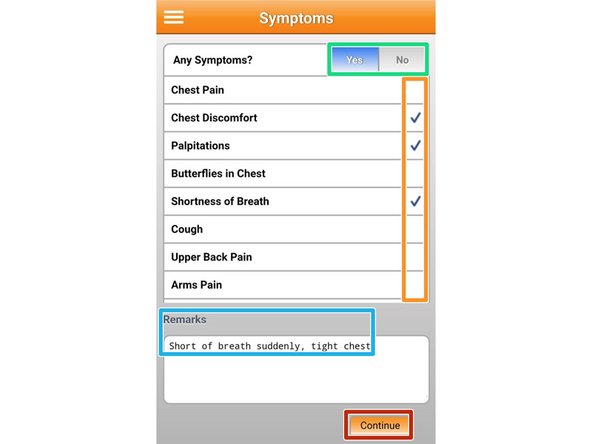
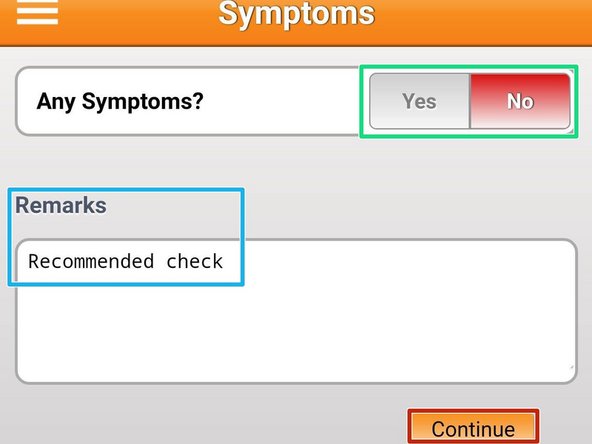
Determine if you have Symptoms
-
Select your Symptoms
-
Multiple symptoms can be selected at once.
-
Add Remarks as needed
-
Select Continue
-
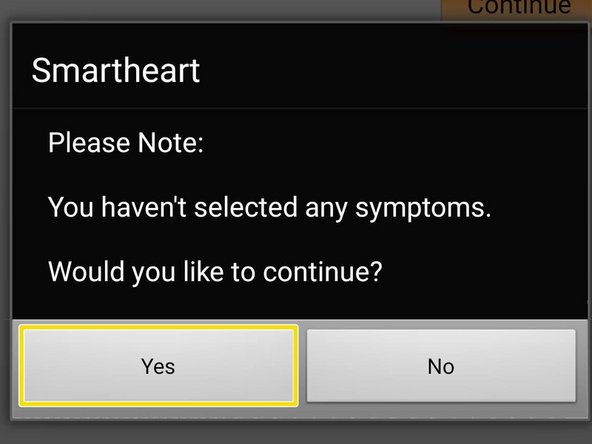
If no symptoms are selected, a reminder will appear.
-
To proceed, select Yes
-
-
-
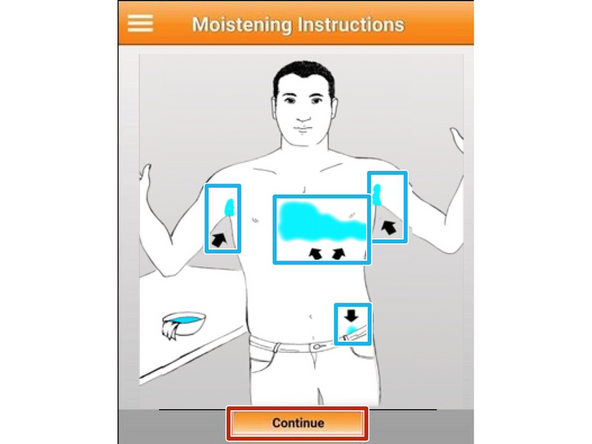
It is important that your skin has been moistened in the areas that SmartHeart® is making contact.
-
Be careful not to spill water directly on to the SmartHeart® Housing.
-
Gently wringing out a wet towel should be sufficient.
-
A spray bottle can also be effective.
-
Moisten your Right and Left Armpits, Chest area and Waist
-
Select Continue
-
-
-
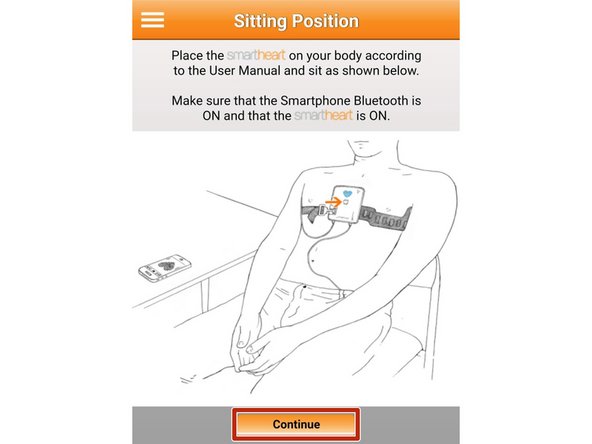
SmartHeart® needs to be secured around your chest. Refer to the sizing and fitting guide for help.
-
-
-
Once you have added moisture, positioned the electrodes, are sitting comfortably and leaning slightly back in your chair with your feet flat on the ground:
-
Select Continue
-
-
-
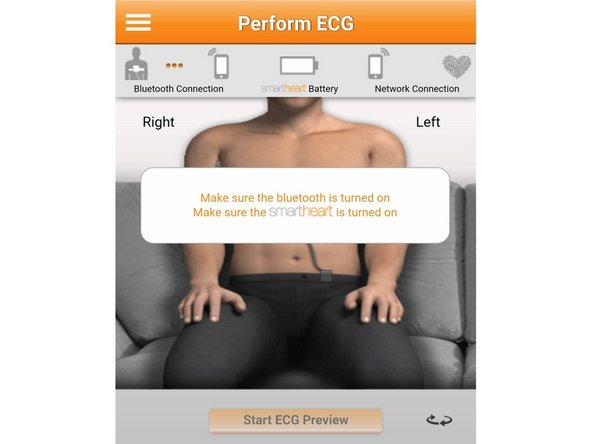
If your device cannot communicate with SmartHeart®, an error will appear.
-
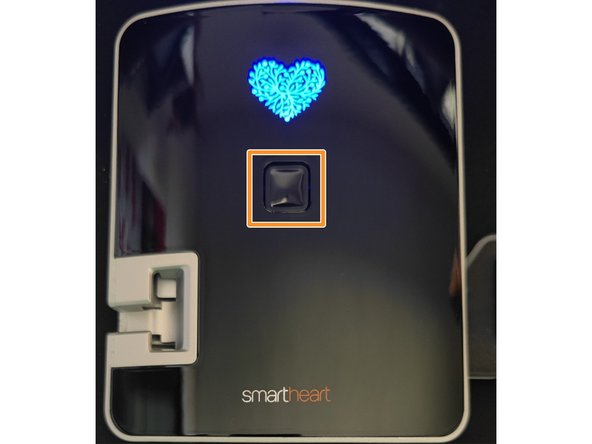
Press the ON/OFF button
-
The heart will be illuminated, not blinking.
-
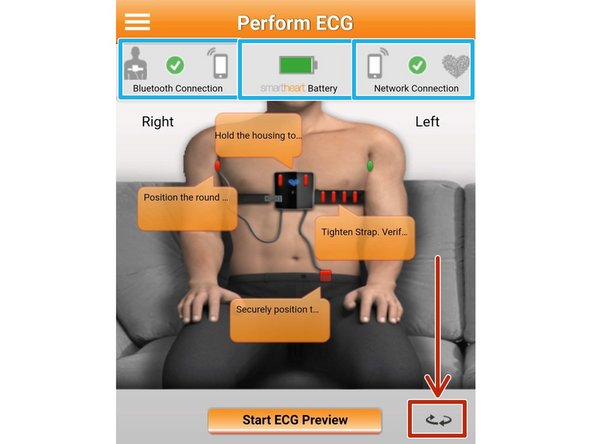
Verify the Bluetooth Connection, Battery and Network Connection
-
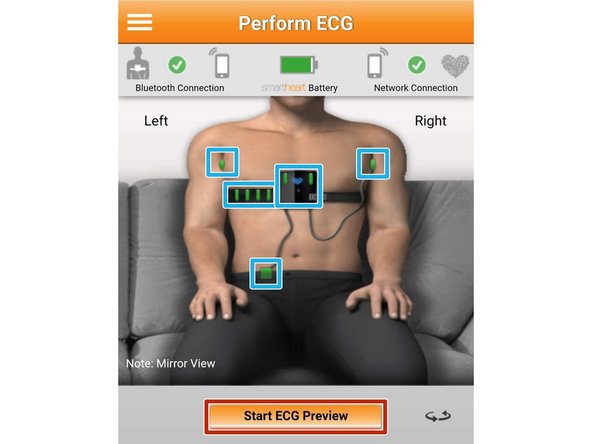
When adjusting the SmartHeart®, to improve electrode contact, switching to mirror view can be helpful.
-
Select Mirror View
-
-
-
Make yourself comfortable. Lean back in your chair, or even lie down. Muscles should be relaxed, and you should be breathing normally.
-
Each electrode will update in real time, the quality of the contact to your skin.
-
Adjust the SmartHeart® until all electrodes are green
-
Select Start ECG Preview
-
-
-
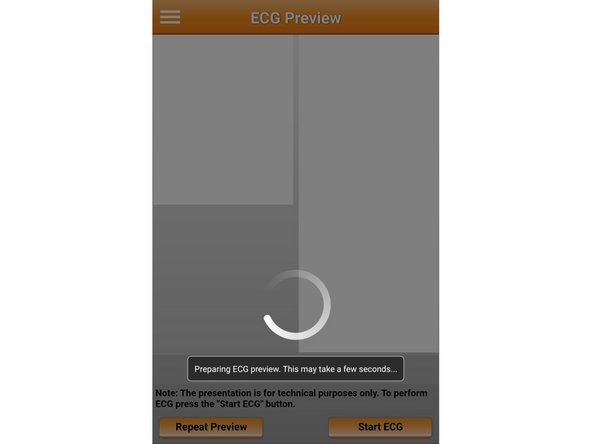
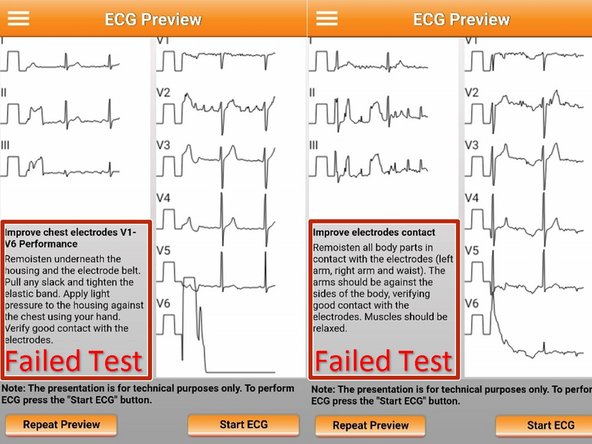
An ECG preview will take place. This is a test to verify SmartHeart® is making proper contact to generate accurate readings.
-
Failed Tests will have a description of the issue and notes to fix the problem
-
Use your mobile device's back button to go back to the previous screen if you need to adjust the electrodes.
-
-
-
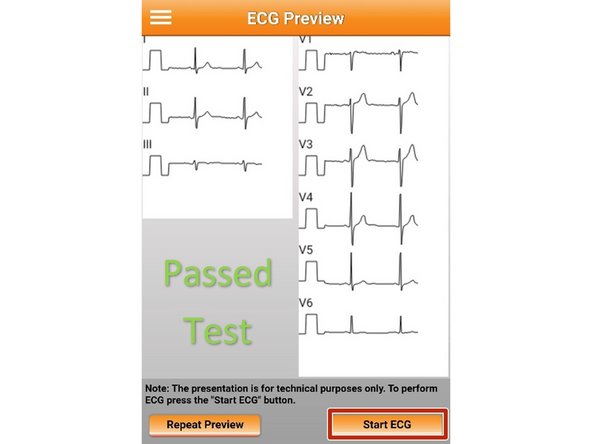
If your ECG preview was successful and does not have any notes:
-
Select Start ECG
-
Once the Start ECG button is tapped, you will hear a voice prompt reminding you to sit still while the ECG is in progress.
-
-
-
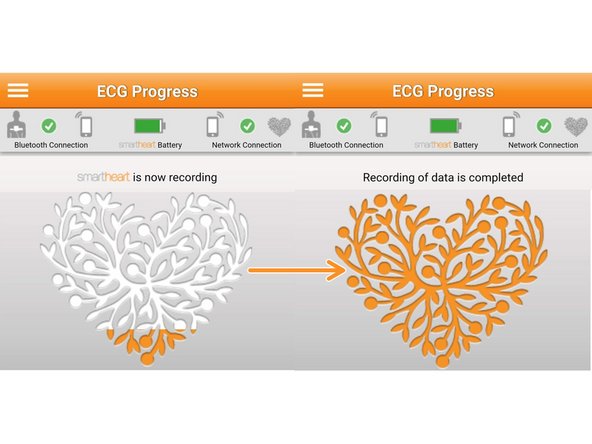
Relax while SmartHeart® is recording.
-
-
-
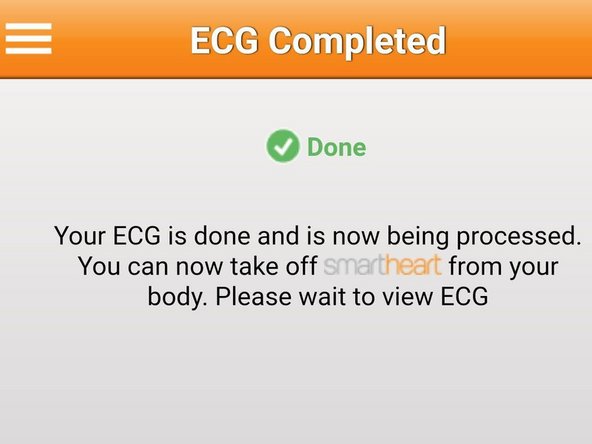
Once SmartHeart® is done recording it will take a moment to process the recording.
-
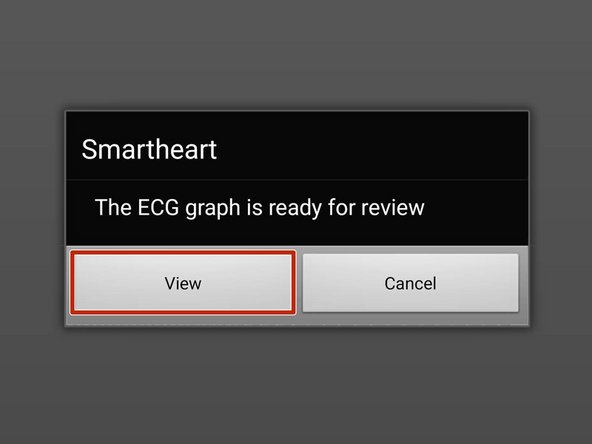
When the ECG is ready for review a SmartHeart® message will appear.
-
Select View
-
-
-
Wait a moment for the ECG report to generate.
-
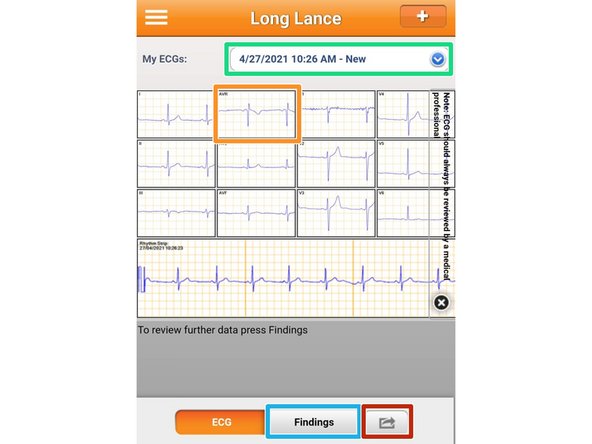
Your Current ECG will appear
-
Select a Recording to view it individually
-
Rotate your device to view in full screen.
-
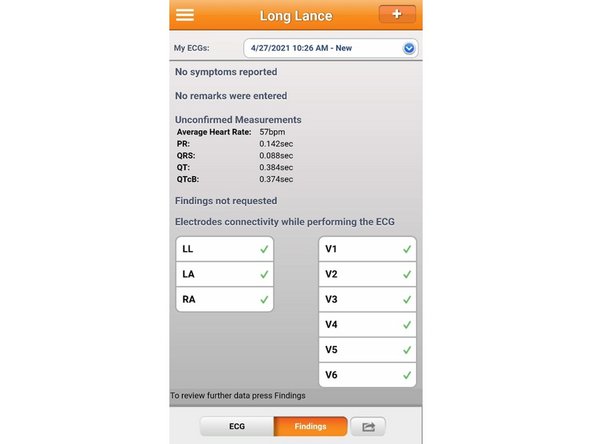
Select Findings for a detailed overview
-
Findings Sample image 3.
-
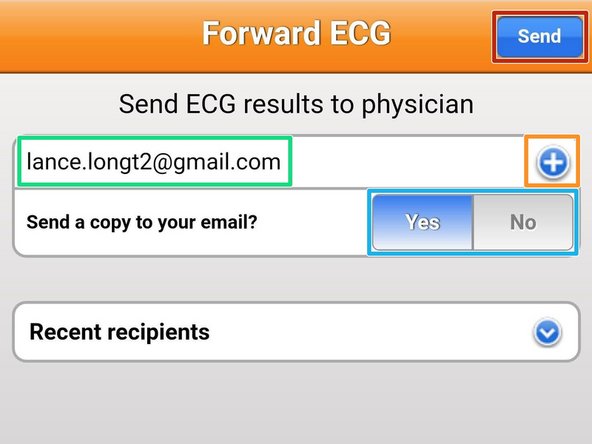
Select Share to send a copy to your doctor
-
-
-
Enter your Physician's Email address
-
Select the + to add more recipients
-
Choose to have a copy sent to your email
-
Select Send
-
Once you have sent the ECG the Smart Heart® app will return to the main screen.
-